



Every photo you take on your iPhone secretly stores more information than you realize. Hidden inside each image is EXIF metadata — a packet of data that records your exact GPS location, the date and time the photo was taken, your iPhone model, camera settings, and more.
To remove metadata from photos on iPhone, go to the Photos app, select your photo, tap Share, choose “Save to Files,” and use the built-in location-stripping option. Alternatively, on iOS 16 and later, you can remove location data directly from the Photos app under the photo’s details without any third-party app.
This guide covers three proven methods to remove metadata from iPhone photos — using the built-in iOS Photos app, the Files app, and free third-party tools — so you can share images privately without exposing your personal information.
Why You Should Remove Metadata From iPhone Photos
Most people have no idea their iPhone photos contain a detailed digital fingerprint. But the privacy risks are very real.
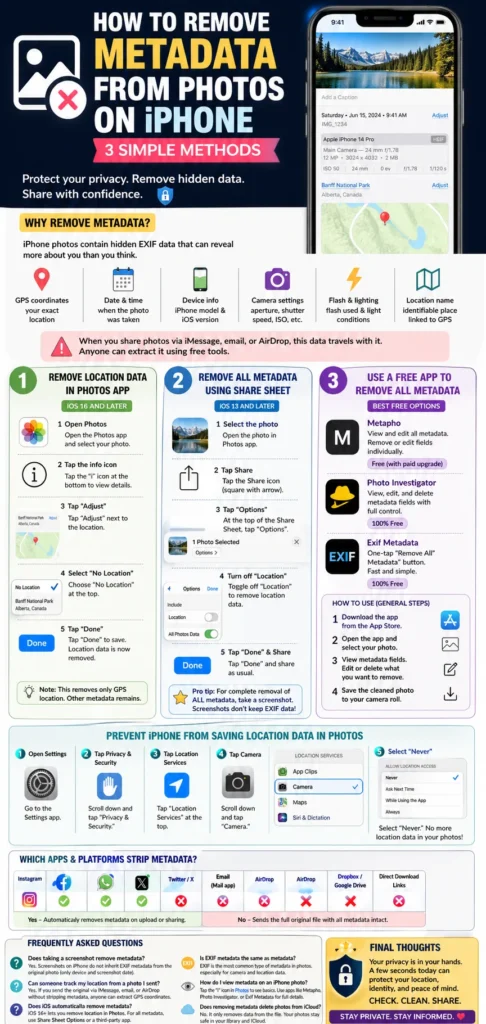
When you share a photo on social media, via email, or through messaging apps, that EXIF metadata often travels with it. Anyone with basic technical knowledge — or a free online EXIF viewer — can extract your precise GPS coordinates, identify your home address, track your daily routines, and determine exactly which device you used to take the photo.
Here’s exactly what iPhone photo metadata can reveal:
- 📍 GPS coordinates — accurate to within a few meters of your exact location
- 📅 Date and time — the precise moment the photo was taken
- 📱 Device information — your iPhone model and iOS version
- 📷 Camera settings — aperture, shutter speed, ISO, focal length
- 🔆 Flash and lighting data — whether flash was used and ambient light conditions
- 🗺️ Location name — the identifiable place name linked to your GPS coordinates
For everyday users, parents sharing photos of children, journalists, or anyone concerned about digital privacy, removing this data before sharing is a smart and necessary habit.
Method 1: Remove Location Data Directly in the iPhone Photos App (iOS 16 and Later)
Apple introduced a built-in location-stripping feature in iOS 16, making it easy to remove GPS data without any additional apps. This is the fastest method for most iPhone users.
Step 1: Open the Photos app. Launch the Photos app on your iPhone and navigate to the photo you want to remove metadata from.
Step 2: Tap the information icon. At the bottom of the screen, tap the small “i” (information) icon. This opens the photo’s details panel, which shows all stored metadata including location, date, camera, and lens information.
Step 3: Tap “Adjust” next to the location. In the details panel, you will see your location listed with a small map thumbnail. Tap the “Adjust” button next to the location field.
Step 4: Select “No Location.” A location picker will appear. Scroll to the top and tap “No Location” to remove the GPS data from the photo permanently.
Step 5: Confirm the change. Tap “Done” to save the change. The location data is now removed from that photo. When you share it, recipients will no longer be able to see where it was taken.
Important note: This method only removes GPS location data. Other EXIF metadata such as device model, date, time, and camera settings will remain in the photo. For complete metadata removal, use Method 2 or Method 3 below.
Method 2: Remove All Metadata When Sharing Using the Share Sheet (iOS 13 and Later)
If you want to strip all metadata — not just location — from a photo before sharing it, iOS has a built-in option inside the Share Sheet that most users never notice.
Step 1: Select the photo in the Photos app. Open the Photos app and tap to open the photo you want to share without metadata.
Step 2: Tap the Share button. Tap the Share icon (the square with an upward arrow) in the bottom-left corner of the screen.
Step 3: Look for “Options” at the top of the Share Sheet. At the very top of the Share Sheet — before the app icons — you will see a small button labelled “Options.” This is easy to miss. Tap it.
Step 4: Toggle off “Location.” Inside the Options menu, you will see a “Location” toggle switch. Turn it off to prevent location metadata from being shared along with the photo.
Step 5: Tap “Done” and proceed with sharing. Tap “Done” to apply the setting, then choose how you want to share the photo. The recipient will receive the photo without any embedded location data.
Pro tip: If you want to share without ALL metadata and not just location, save the photo first as a screenshot by taking a screenshot of the photo. Screenshots on iPhone do not retain EXIF metadata from the original image — making this a quick workaround for complete metadata removal.
Method 3: Use a Free Third-Party App to Remove All iPhone Photo Metadata
For complete and reliable removal of all EXIF metadata — including device model, date, time, and camera settings — a dedicated metadata removal app gives you the most control.
Here are the best free options available on the App Store:
Metapho (Free with paid upgrade)
Metapho is one of the most popular EXIF metadata viewers and editors for iPhone. The free version allows you to view all metadata stored in your photos. The paid version (a small one-time purchase) lets you edit or completely strip all metadata fields before sharing.
How to use Metapho:
- Download Metapho from the App Store
- Open Metapho and select the photo you want to edit
- Tap “Edit” to access metadata fields
- Tap the location field and select “Remove”
- Tap “Save” to apply changes
Photo Investigator (Free)
Photo Investigator is a fully free EXIF metadata viewer and editor for iPhone. It lets you view, edit, and delete metadata fields individually — giving you granular control over exactly what information is stripped from each photo.
How to use Photo Investigator:
- Download Photo Investigator from the App Store
- Open the app and select your photo from the camera roll
- Scroll through all metadata fields displayed
- Tap the delete or edit icon next to any field you want to remove
- Save the cleaned photo back to your camera roll
Exif Metadata (Free)
A simple, straightforward EXIF viewer and remover. It displays all metadata in an easy-to-read format and offers a one-tap “Remove All Metadata” button — making it the fastest option for users who want complete metadata stripping with minimal steps.
How to Prevent iPhone From Saving Location Data to Photos in the First Place
Rather than removing metadata after the fact, you can configure your iPhone to never save location data to photos at all. This is the most efficient long-term privacy solution.
Step 1: Open Settings. Go to your iPhone’s Settings app.
Step 2: Tap Privacy & Security. Scroll down and tap “Privacy & Security.”
Step 3: Tap Location Services. Tap “Location Services” at the top of the Privacy & Security menu.
Step 4: Scroll down and tap Camera. Find the Camera app in the list of apps and tap it.
Step 5: Select “Never.” Under “Allow Location Access,” select “Never.” From this point forward, your iPhone camera will never embed GPS coordinates into any photo you take.
Note: Disabling location access for Camera means your photos will no longer be automatically organized by location in the Photos app. If you use the location-based “Places” feature in Photos, consider selecting “While Using” instead and manually removing location data from specific photos before sharing.
Does Removing Metadata Affect Photo Quality?
No — removing EXIF metadata from iPhone photos has absolutely no effect on image quality whatsoever.
Metadata is stored as a separate data layer attached to the image file. It does not form part of the actual pixel data that makes up the visual image. Stripping metadata does not compress, resize, reformat, or degrade the photo in any way.
The only thing that changes is the invisible information packet attached to the file — not the photo itself.
Which Apps and Platforms Automatically Strip Metadata?
Some apps and platforms automatically remove metadata from photos when you upload or share them — which means you may not need to manually strip data in all cases.
| Platform | Strips Metadata Automatically? |
|---|---|
| ✅ Yes — removes all EXIF data on upload | |
| ✅ Yes — strips location and most EXIF data | |
| ✅ Yes — compresses images and removes metadata | |
| Twitter / X | ✅ Yes — removes metadata on upload |
| iMessage | ❌ No — sends full metadata unless you strip it first |
| Email (default Mail app) | ❌ No — sends full metadata with the image |
| AirDrop | ❌ No — transfers the complete original file including all metadata |
| Dropbox / Google Drive | ❌ No — preserves all original metadata |
| Direct download links | ❌ No — full metadata intact |
This table makes clear that iMessage, email, AirDrop, and cloud storage transfers are the most vulnerable methods — and the ones where manual metadata removal is most important before sharing.
Frequently Asked Questions About iPhone Photo Metadata
Does taking a screenshot remove metadata from iPhone photos?
Yes. When you take a screenshot of a photo on your iPhone, the resulting screenshot image does not inherit the EXIF metadata from the original photo. Screenshots on iPhone contain minimal metadata — typically just the device model and screenshot date — making this a quick workaround for metadata removal before sharing. However, taking a screenshot will slightly reduce the image quality compared to the original.
Can someone track my location from a photo I sent on iPhone?
Yes — if you share the original photo file through iMessage, email, or AirDrop without stripping the metadata first, anyone with an EXIF viewer can extract the GPS coordinates embedded in the image. Social media platforms like Instagram and Facebook automatically remove this data, but direct file transfers do not. Always strip location data before sending photos through iMessage or email.
Does iOS automatically remove metadata from photos?
iOS does not automatically remove all metadata from photos. However, since iOS 16, Apple added the ability to remove location data directly within the Photos app. For complete metadata removal, you still need to use the Share Sheet Options method or a third-party app. Some sharing platforms strip metadata automatically upon upload, but the iPhone itself preserves all EXIF data in the original photo file.
Is EXIF metadata the same as metadata?
EXIF (Exchangeable Image File Format) is the most common type of metadata embedded in iPhone photos. It is a standardized format for storing technical and contextual information about an image. Other types of metadata can include IPTC data (used for copyright and captioning information) and XMP data (used by editing software). When most people refer to “photo metadata” in the context of privacy, they are referring primarily to EXIF data — especially the GPS location field.
How do I view the metadata on an iPhone photo?
To view metadata on an iPhone photo, open the Photos app, select your photo, and tap the “i” (information) icon at the bottom of the screen. This displays the date, time, location, and camera information stored in the image. For a complete view of all EXIF fields including camera settings and device details, use a free app like Metapho, Photo Investigator, or Exif Metadata from the App Store.
Does removing metadata from photos delete them from iCloud?
No. Removing metadata from a photo only modifies the data attached to the image file — it does not delete the photo from your camera roll or iCloud Photos library. The photo remains saved and accessible exactly as before. However, if iCloud Photos sync is enabled, the metadata change will sync across all your Apple devices.
Final Thoughts — Protect Your Privacy by Managing iPhone Photo Metadata
Every photo you share without checking its metadata is a potential privacy risk. Whether you’re sending images through iMessage, attaching them to emails, or uploading them to cloud services, your iPhone’s EXIF data can reveal far more about you than you intend.
The good news is that removing metadata from iPhone photos takes less than 30 seconds using the built-in tools Apple provides — and for complete metadata removal, free apps like Photo Investigator give you full control in just a few taps.
Key Takeaways:
- iPhone photos automatically store GPS location, device model, date, time, and camera settings in hidden EXIF metadata
- iOS 16+ users can remove location data directly in the Photos app via the “i” information panel
- The Share Sheet “Options” button lets you disable location sharing before sending any photo
- iMessage, email, and AirDrop do NOT strip metadata — always clean photos before sending through these channels
- Social media platforms like Instagram, Facebook, and WhatsApp automatically remove metadata on upload
- To prevent location data from being saved at all, set Camera location access to “Never” in iPhone Settings
Stay private. Stay informed. And share your photos on your own terms. 🔒